

 ScreenSharePRO
Remote Desktop
View and control a remote Windows desktop in real time over a direct peer-to-peer WebRTC connection. Any machine can host its screen and control another — in the same app.
Learn moreRemote access for Windows
Secure. Fast. Reliable Remote Access. Connect to a Windows PC in seconds — from another Windows machine or straight from your browser — over an encrypted, peer-to-peer WebRTC connection.


Install ScreenSharePRO once with the Windows installer, and you can share this computer or connect to another straight away. No account is needed to start.
Your ID and a password to share with whoever is helping you.
Enter the other PC's ID and password, then Connect.
Everything you expect from an enterprise remote access platform — without the complexity.
Connect in seconds, with adaptive video quality tuned for real-world networks.
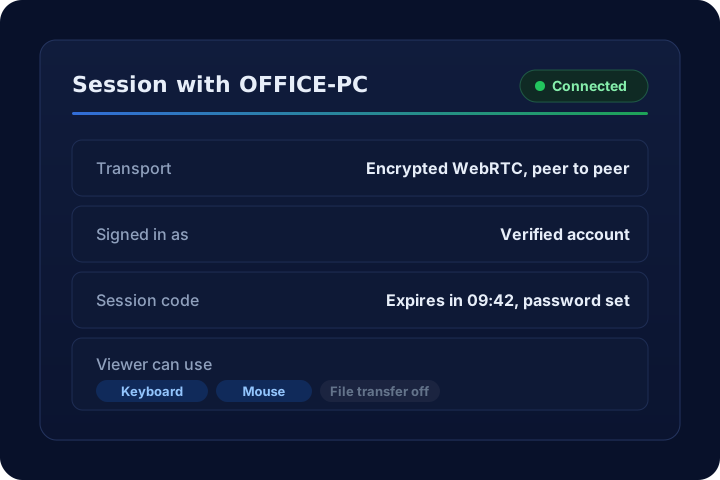
Every session runs over an encrypted, peer-to-peer WebRTC connection with JWT accounts and expiring, optionally password-protected session codes.
Smooth, responsive control with adaptive quality even on high-latency connections.
Available for Windows and the browser, with more platforms coming soon.
No VPN, no firewall changes, no complicated setup. Install, connect and you're in.
Grab the free client for your platform and install it on the device you want to reach. The whole thing takes under a minute.
Enter the device's access key or accept an on-screen prompt. ScreenSharePRO negotiates an encrypted, low-latency channel automatically.
Control the remote Windows desktop, switch monitors, transfer files and sync the clipboard — all in real time.
A complete toolkit for support teams, IT admins and remote workers.
View and control a remote Windows desktop in real time over a direct peer-to-peer WebRTC connection. Any machine can host its screen and control another — in the same app.
Learn moreThe host's displays are all detected and switchable live, mid-session. Pick the monitor to share, and remote input follows the screen you're viewing.
Learn moreAn optional SYSTEM-level session agent keeps you seeing and controlling the host straight through UAC consent prompts and the Windows secure desktop — no black or frozen frame.
Learn moreMove files between the two machines over encrypted WebRTC data channels, right alongside the live session — no separate upload step.
Learn moreCopy on one machine and paste on the other. Clipboard content travels over the same encrypted data channel as the session.
Learn moreEveryone in the session sees every pointer, each with a name under it. Viewers point without dragging the host's mouse around, and the host's own hand always wins.
Learn moreSave the hosts you connect to, see which are online at a glance, and reconnect in a click with account-bound, permanent session IDs.
Learn morePower on sleeping or shut-down machines remotely with a Wake-on-LAN magic packet, so a device is always reachable when you need it.
Learn moreLock or restart the host remotely and reconnect automatically once it's back online — no site visit required.
Learn moreEvery session runs directly between the two machines over encrypted WebRTC. Access is governed by JWT accounts and expiring session codes, and the host decides exactly what a viewer can do.
From help desks to hospitals, ScreenSharePRO adapts to your needs.
Whether you're resolving a customer's ticket, reaching your office PC from home or managing a fleet of servers, ScreenSharePRO adapts to the job — without forcing you to switch tools.
Resolve tickets faster with one-click access.
Your office, anywhere — at full speed.
Reach PCs with nobody at them, plus Wake-on-LAN.
Move files and clipboard over data channels.
Download for Windows or try it right in your browser. Free during early access.